
Creating a custom logo for my realeyesvr.com blog site using Azure’s OpenAI Studio with ChatGPT-4 and DALL-E 3 is an exciting process that combines advanced AI technologies.
(reminds me of a Journey or ELO album cover)
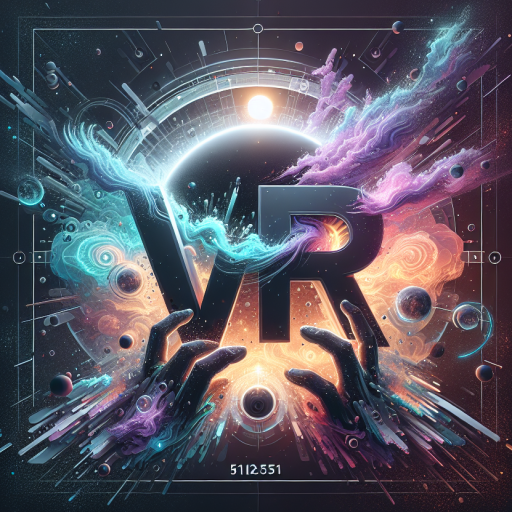
Here’s a step-by-step guide to help you through the process:
Setting Up Azure OpenAI Studio
First, you’ll need to set up Azure OpenAI Studio:
- Create an Azure OpenAI service instance in the Azure portal.
- Choose a region that supports DALL-E 3, such as Sweden Central.
- Once created, navigate to the Azure OpenAI Studio.
Deploying the Models
To use ChatGPT-4 and DALL-E 3, you’ll need to deploy these models:
- In Azure OpenAI Studio, go to “Model deployments”.
- Click “Manage deployments” to access the deployment interface.
- Deploy both the GPT-4 and DALL-E 3 models.
Brainstorming with ChatGPT-4
Use ChatGPT-4 to generate ideas for your logo:
- In the ChatGPT playground, start a conversation about logo design for realeyesvr.com.
- Describe your blog’s focus on virtual reality and ask for logo concepts.
- Refine the ideas through conversation until you have a clear concept.
Creating the Logo with DALL-E 3
Now, use DALL-E 3 to generate your logo:
- Navigate to the DALL-E playground in Azure OpenAI Studio.
- Use the refined concept from your ChatGPT-4 conversation as a prompt.
- For example: “Create a minimalist logo for realeyesvr.com featuring a stylized eye merged with VR goggles, using shades of blue and white.”
- Generate multiple images and iterate on the prompt as needed.
Refining the Logo
- Select the best-generated logo from DALL-E 3.
- If needed, describe desired modifications to ChatGPT-4 and get a new prompt.
- Use this new prompt in DALL-E 3 to create an improved version.
Finalizing Your Logo
- Once satisfied with the DALL-E 3 generation, download the image.
- Consider minor touch-ups or refinements using graphic design software if necessary.
- Ensure the logo looks good in various sizes and on different backgrounds.
By leveraging Azure’s OpenAI Studio with ChatGPT-4 and DALL-E 3, you’ve created a unique, AI-generated logo that captures the essence of your virtual reality blog. This process demonstrates the power of combining language models for ideation with image generation models for visual creation, all within the Azure ecosystem.
Remember, while AI-generated logos can be a great starting point, you may want to consult with a professional designer for final touches or to ensure the logo meets all your branding needs. Additionally, always verify that the use of AI-generated content aligns with your blog’s policies and any relevant copyright considerations.
 RealeyesVR
Leave a comment